Cooking with Robots now speaks MCP: connect your pantry to ChatGPT and Claude
Last reviewed:
You already talk to an AI assistant every day. Now that assistant can talk to your kitchen.
As of today, Cooking with Robots has an MCP server. If you use ChatGPT, Claude, Claude Code, Cursor, or any other tool that speaks MCP, you can connect it to your Cooking with Robots account and ask it to read your pantry, plan your week, and hand you a grocery list — without opening our site at all.
See the exact ChatGPT flows for “plan dinner tonight” and “plan my meals for this week.”
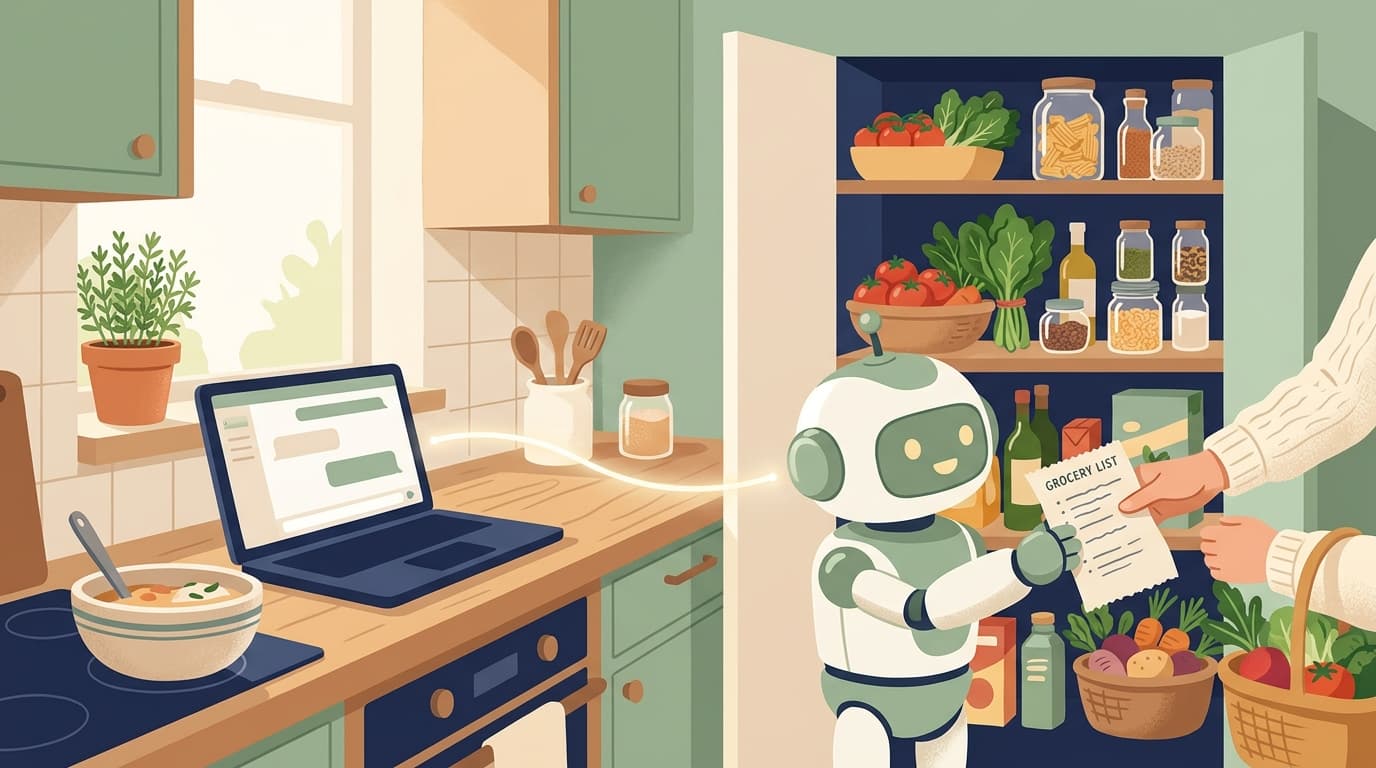
What is MCP, in plain English
MCP (Model Context Protocol) is an open standard that lets AI assistants securely connect to outside apps. Think of it as a universal plug: instead of every app building a separate integration for every assistant, an app exposes one MCP server and any assistant can use it. Ours is live now. When you connect, the assistant acts on *your* account — your pantry, your allergies, your plans — and only after you approve access. You can revoke it any time.
What you can actually do
Once connected, your assistant gets seven tools.
get_pantry and update_pantry — "What's in my pantry?" or "I just bought chicken thighs and a bag of spinach, add them."
generate_weekly_plan — the big one. "Plan my week of dinners from what I have." Same engine as the site: your allergies are respected, and no single ingredient dominates the week. Never prep the same week twice, even from inside a chat window.
get_weekly_plan — pull up the current plan, macros included.
search_recipes and get_recipe — find and read any recipe in our collection.
get_grocery_list — the gaps between your plan and your pantry, ready to shop.
So a Sunday can look like this: you tell Claude "plan my dinners for the week and give me the shopping list," and thirty seconds later you have both. The robot did the robot work. You never left the conversation.
How to connect
Everything lives in Settings → AI Assistant Access on cookingwithrobots.com. The server URL is https://cookingwithrobots.com/api/mcp.
Claude (claude.ai): Settings → Connectors → add a custom connector with the URL above. Claude discovers the sign-in flow automatically — approve access on our consent screen and you're done. No token needed.
ChatGPT: add the same URL as a custom MCP connector (Settings → Connectors → Advanced). ChatGPT signs in via OAuth. Note that OpenAI gates custom connectors to certain plans, so check yours.
Claude Code, Cursor, or anything that takes a bearer token: generate a token in Settings → AI Assistant Access, copy it once, and add the server with an Authorization: Bearer header. The exact command is on the settings page.
Available to everyone, like everything else
No paid tier, no waitlist. Every Cooking with Robots account has MCP access — log in, generate a token or connect via OAuth, and go. Tokens are shown once and stored hashed, every request re-checks your account, and revoking a token in Settings cuts access instantly.
Prep like a robot. Eat like a human. And now, ask your robot to talk to ours.